Essentials

Graph 

In this section you'll learn how to access and use graphs.

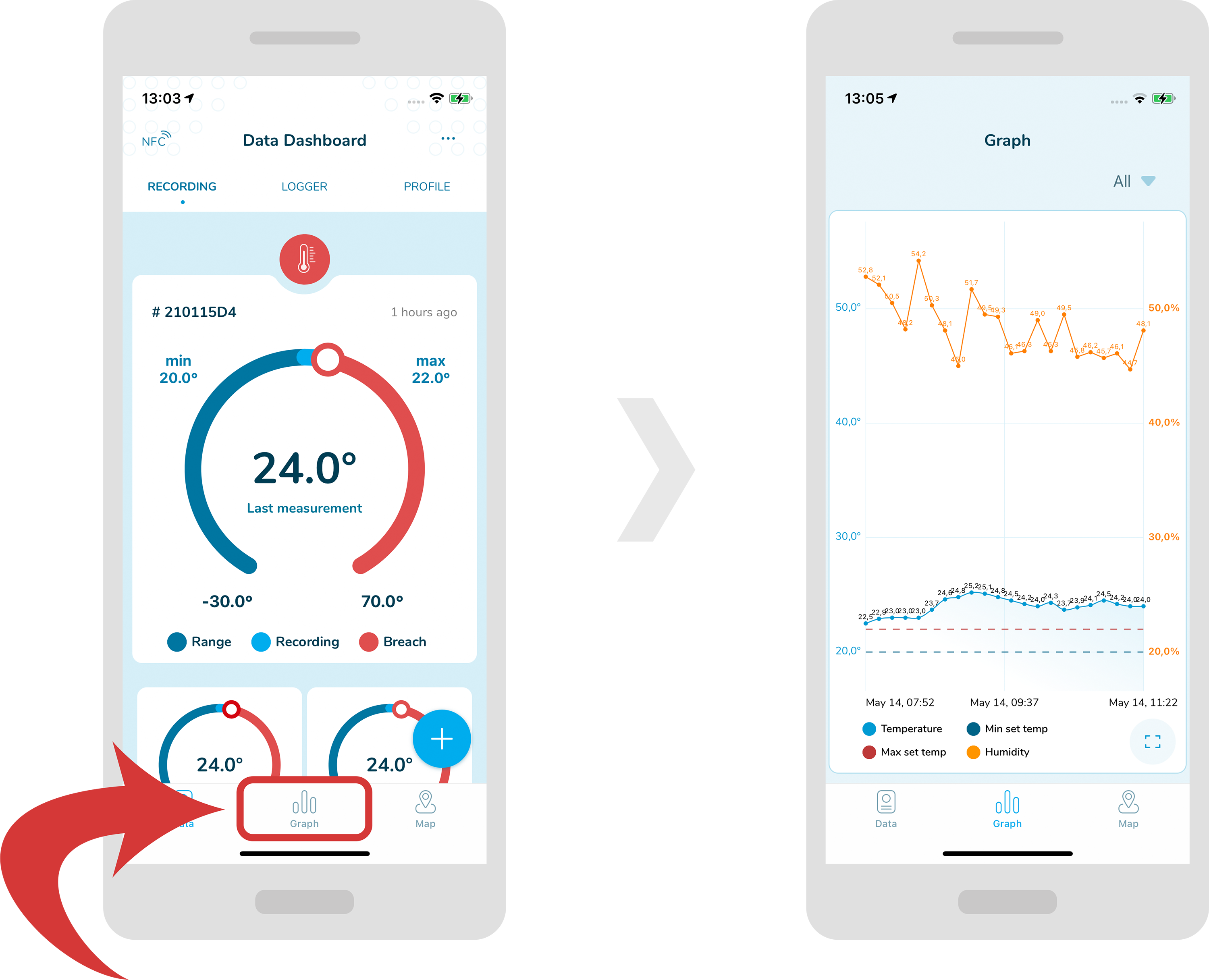
  • In order to see a graph, select a “Graph” tab from the bottom menu.
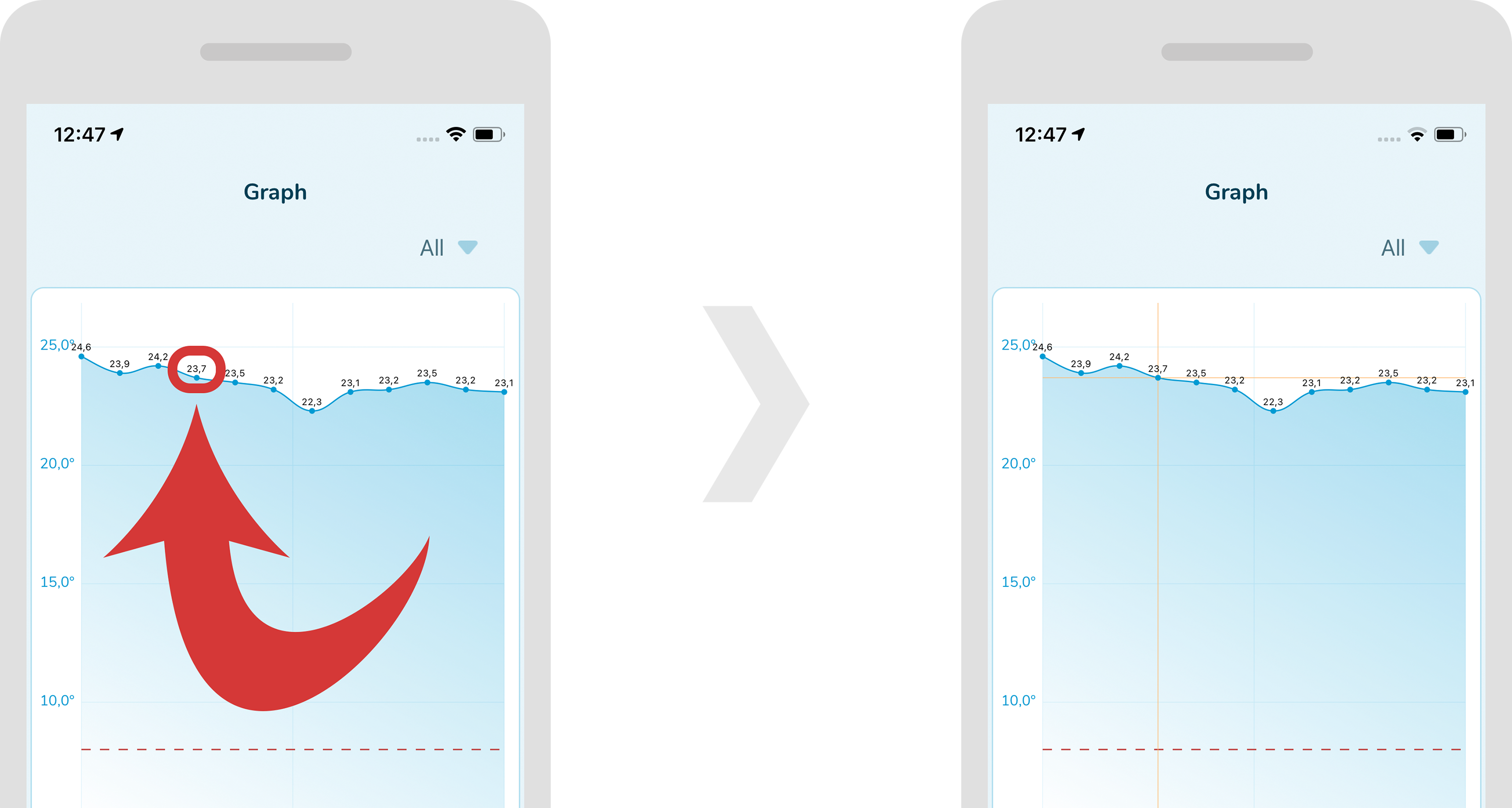
  • In order to select a point on a graph, just tap near the specified point. Now, orange lines should appear crossing this point.
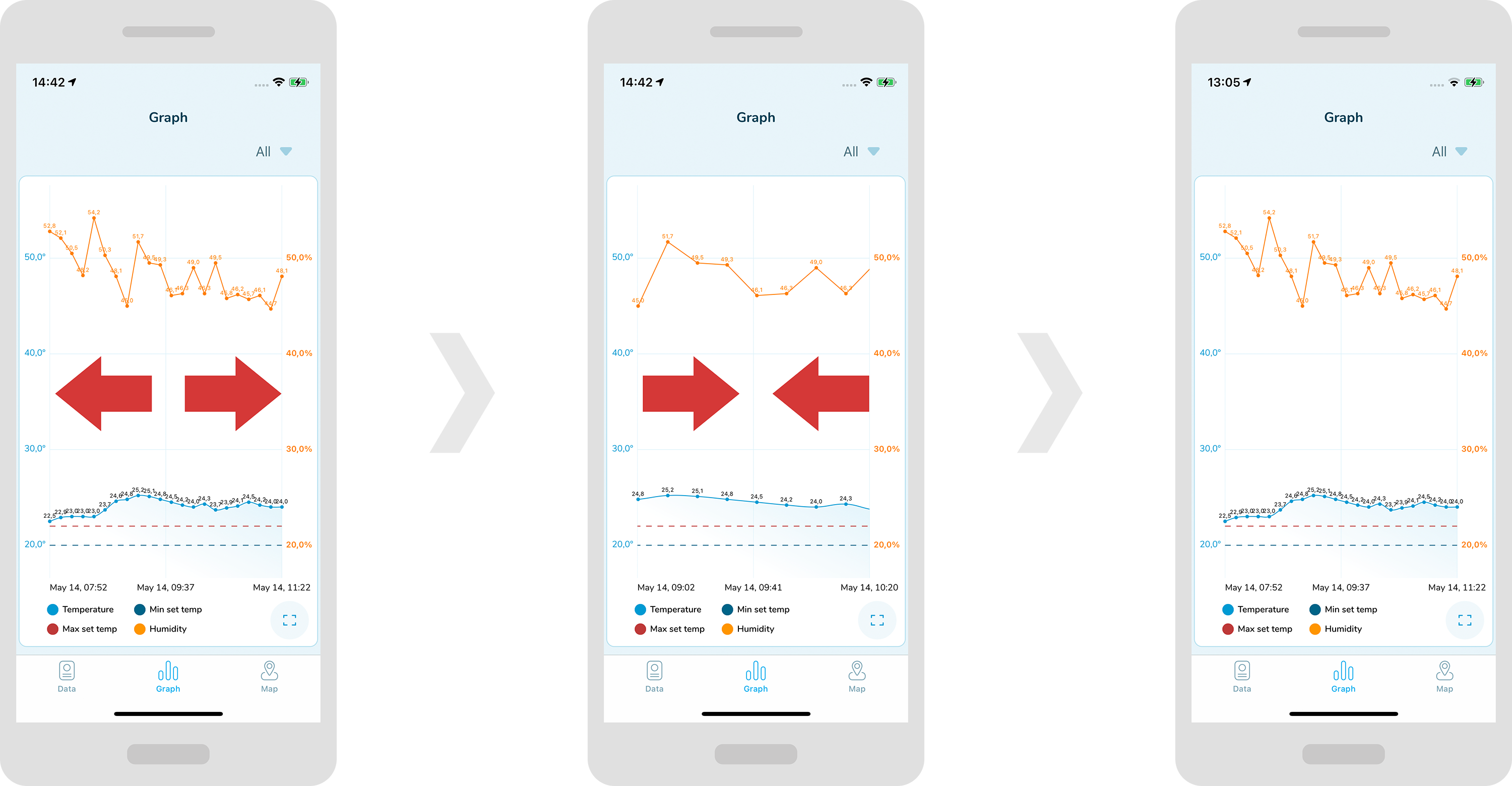
  • In order to widen or shrink the graph horizontally, drag it or expand it with your fingers horizontally.
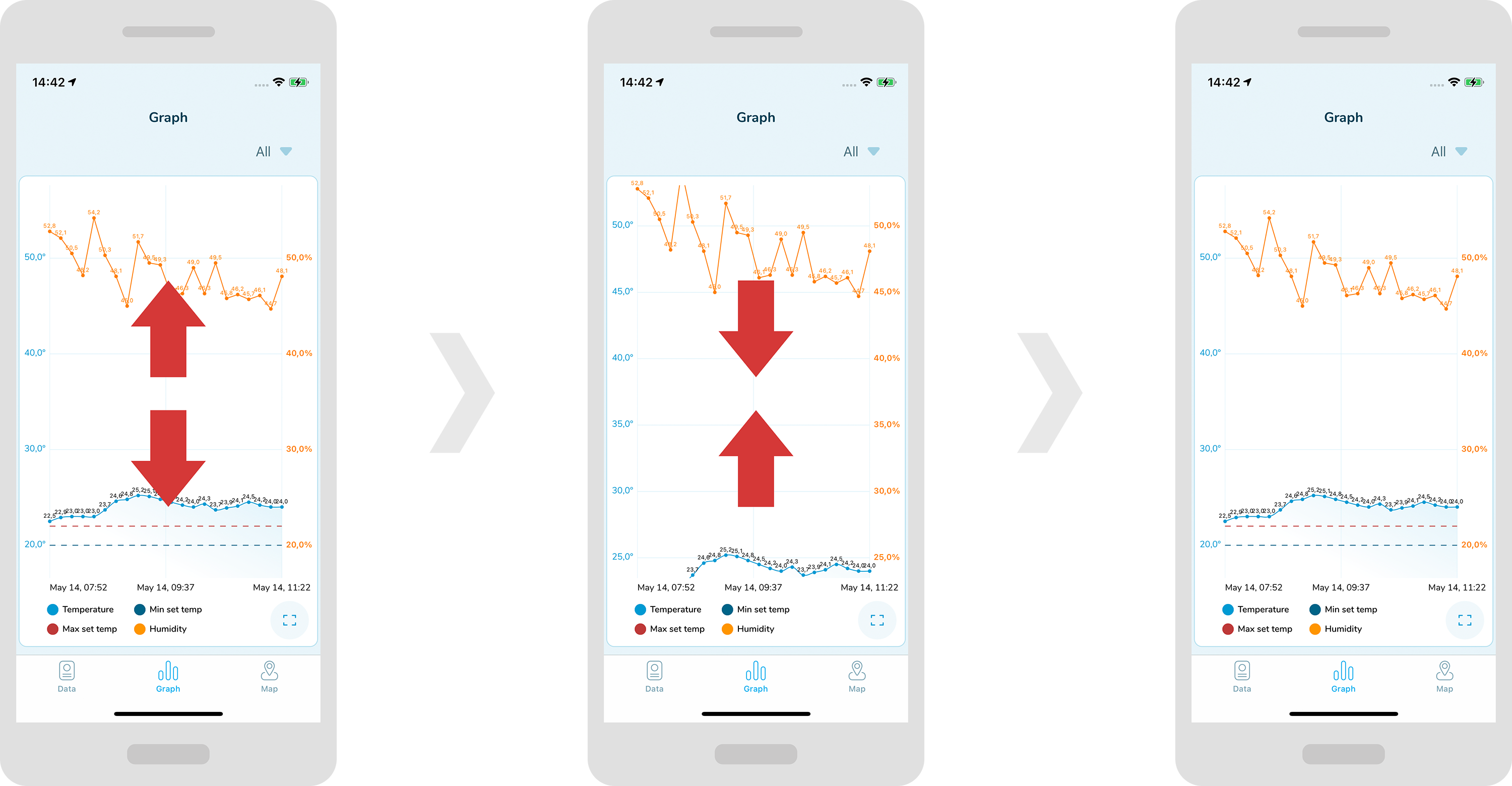
  • in order to widen or shrink the graph vertically, drag it or expand it with your fingers vertically.
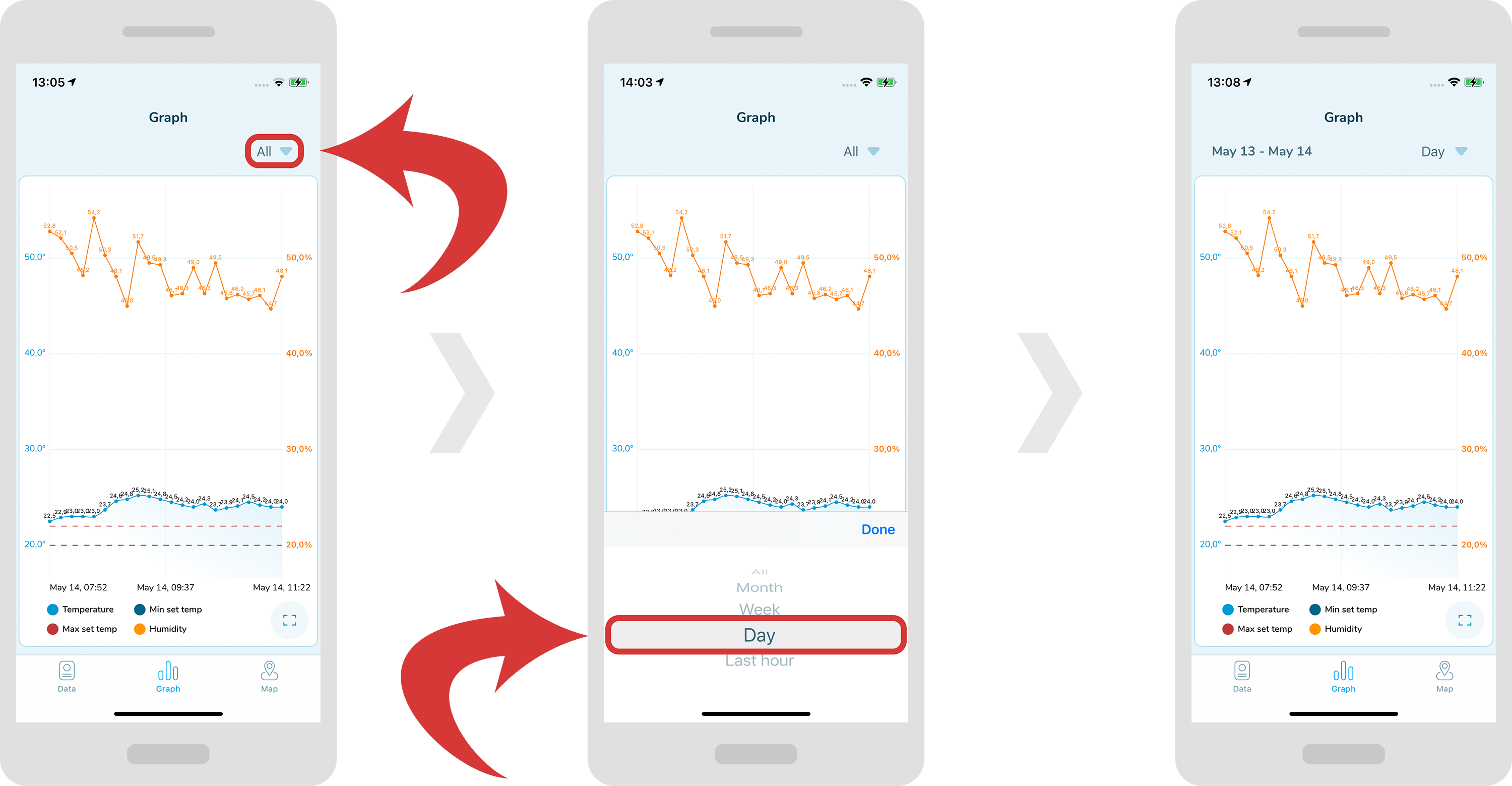
  • In order to show the graph for a specific range, tap on the dropdown menu at the top right and choose a specific filtration.
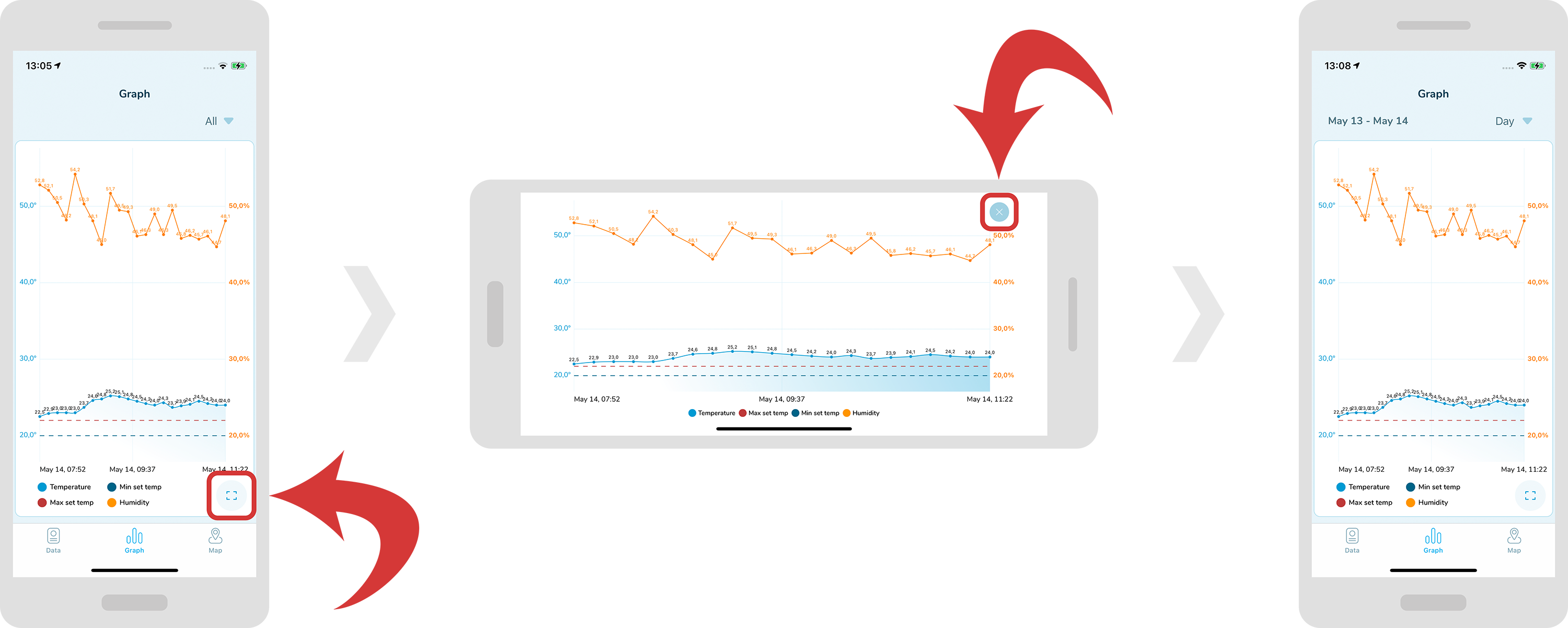
  • in order to see a graph on a full screen, tap on the “full screen” icon located at the bottom right. In order to quit the full screen mode, just tap on the “x” icon located at the top right.
5 Mistakes to Avoid

While Choosing Your Monitoring Solution

Confused which monitoring solution to choose? Get this no-fluff report with valuable insights to save time & money!

The administrator of your personal data will be “Blulog Sp. z o.o.”, Konarzewska 4 street, 60-101 Poznań, Poland, Tax Identification Number: 7792427403. You can find details regarding data processing in the Privacy Policy. You will be able to withdraw your consent at any time.

We use Mailchimp as our marketing platform. By clicking above to subscribe, you acknowledge that your information will be transferred to Mailchimp for processing. Learn more about Mailchimp's privacy practices here.

The administrator of your personal data will be Jérémy Laurens, who runs a business under the name "Blulog Sp. z o.o.", Konarzewska 4 Street, 60-101 Poznań, Poland, Tax Identification Number: X. You can find details regarding data processing in the Privacy Policy. You will be able to withdraw your consent at any time.