Additional

Settings 

In this section you'll learn how to access settings.

  1. In order to access settings, first make sure you are inside a “Data Dashboard” page.

  2. Now, press on the “3 dots” icon at the top right.

  3. Select “Settings” from the drop down menu.
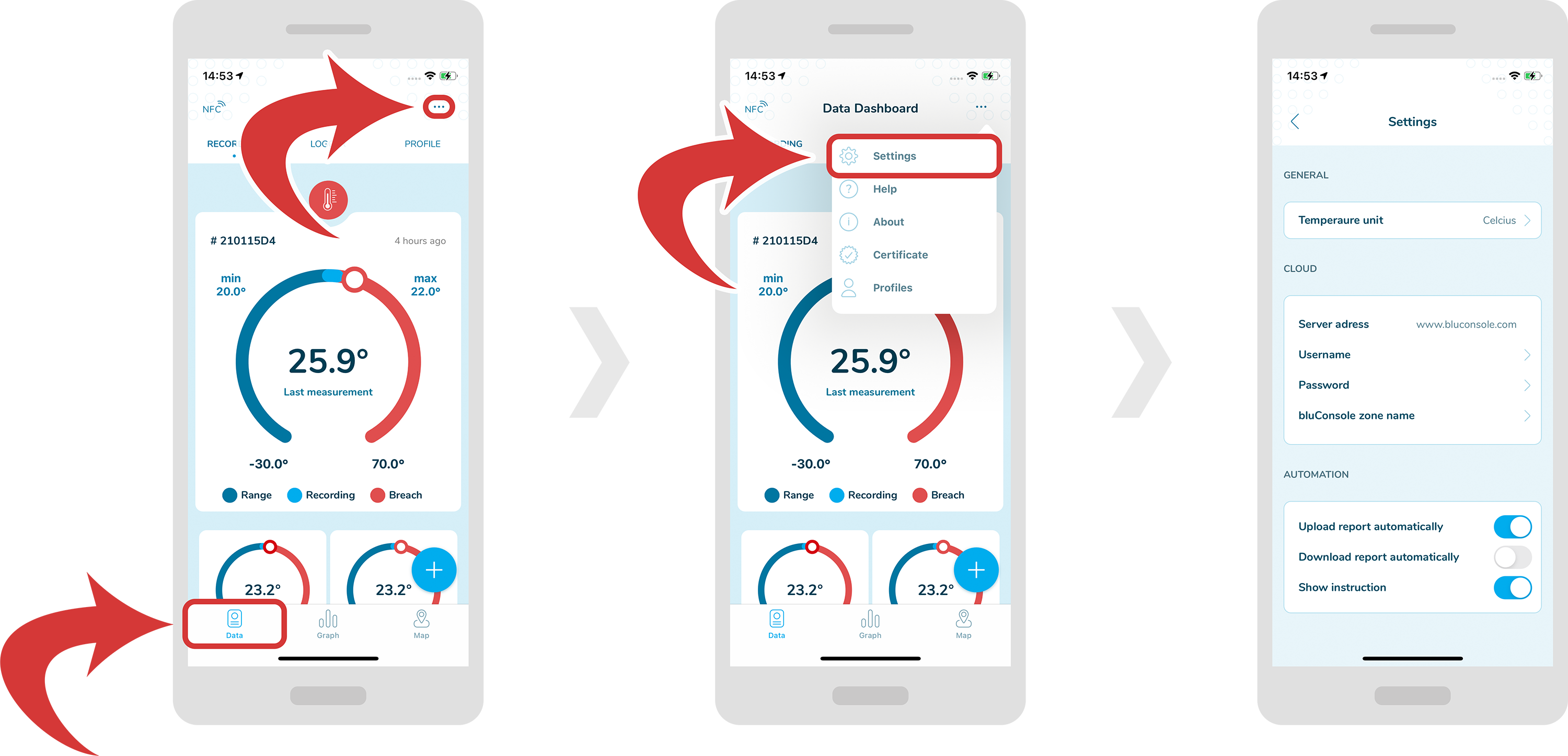
Inside “Settings” you will be able to adjust various options, for example set temperature unit, bluConsole account and auto upload.

Upload report automatically – this option will allow you to upload data to the cloud after each scan.

Download report automatically – this option will allow you to download the report on your iPhone each time the NFC logger is scanned.

Show instruction – this option will allow you to switch on or off the general instructions that appear after opening an app.

5 Mistakes to Avoid

While Choosing Your Monitoring Solution

Confused which monitoring solution to choose? Get this no-fluff report with valuable insights to save time & money!

The administrator of your personal data will be “Blulog Sp. z o.o.”, Konarzewska 4 street, 60-101 Poznań, Poland, Tax Identification Number: 7792427403. You can find details regarding data processing in the Privacy Policy. You will be able to withdraw your consent at any time.

We use Mailchimp as our marketing platform. By clicking above to subscribe, you acknowledge that your information will be transferred to Mailchimp for processing. Learn more about Mailchimp's privacy practices here.

The administrator of your personal data will be Jérémy Laurens, who runs a business under the name "Blulog Sp. z o.o.", Konarzewska 4 Street, 60-101 Poznań, Poland, Tax Identification Number: X. You can find details regarding data processing in the Privacy Policy. You will be able to withdraw your consent at any time.